
Restoring Your Backups
Restoring a Backup to Proxmox VE
With Proxmox VE, you can restore a full machine/container or specific files on a machine/container. Both methods are listed below.
Full Disk Restore
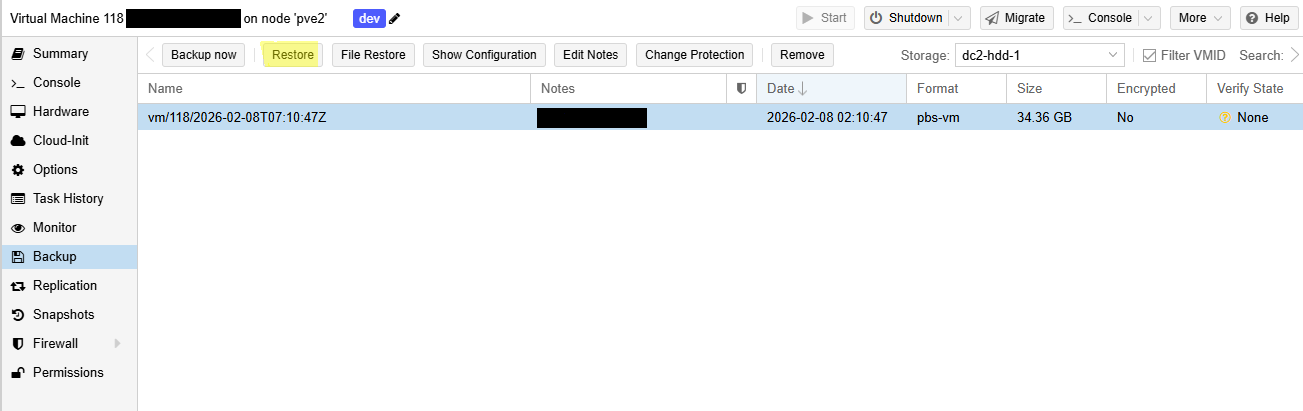
To restore an entire virtual machine or container, select Restore.
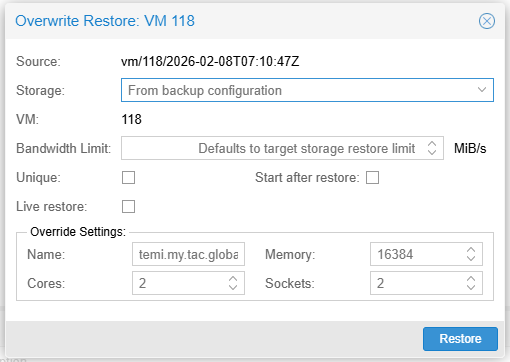
You will be prompted with the following. If there is a virtual machine or container with the same ID it will be overwritten once you select Restore.
File Restore
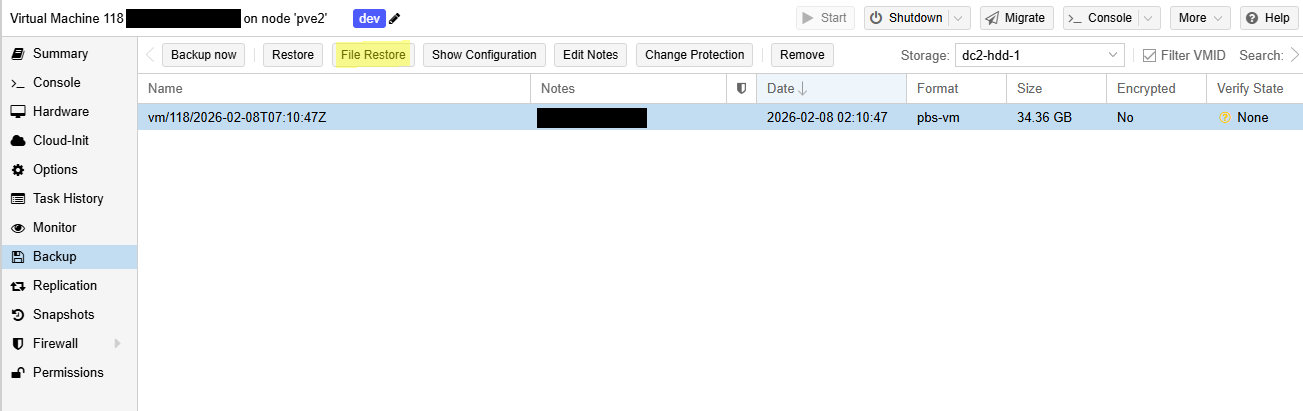
To restore a file, select the virtual machine or container you would like and select the Backup tab. Select File Restore.
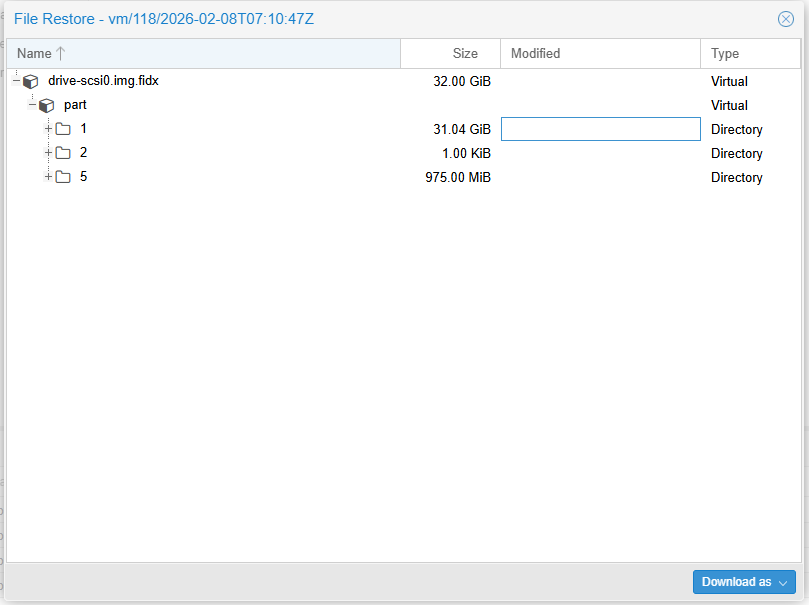
Under the backup archive, please select the file(s) you would like to restore. Select Download.
Restore a Backup to a Linux Server
First, ensure that you have the encryption key file ready to go. If you have forgotten it, please check your onboarding email or the dashboard to recover your key.
To connect to the backup server repository, login with the following command. You will be prompted to enter your password.
proxmox-backup-client login --repository [username]@pbs@[server]:[datastore]Once you have successfully logged in, run the following command to see your backup snapshots.
proxmox-backup-client snapshot listTo restore your selected files you can use the following command
proxmox-backup-client restore [host/example/2026-01-30T23:06:35Z] index.json --repository "" --keyfile /path/to/keyfile