Getting Started
Accessing the Server
You should have received an email with your login credentials, your client encryption key and the server link from support@untangledtechnology.com. Please make sure to save the encryption key on your server.
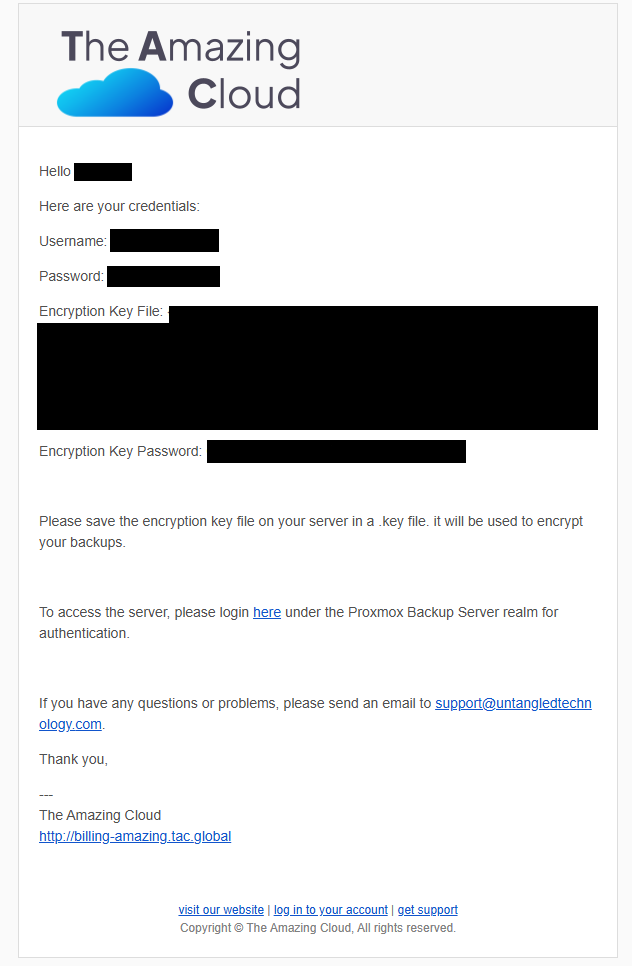
To access the server please login under the realm Proxmox Backup authentication server.
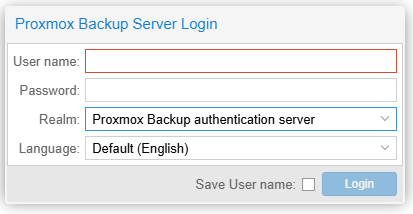
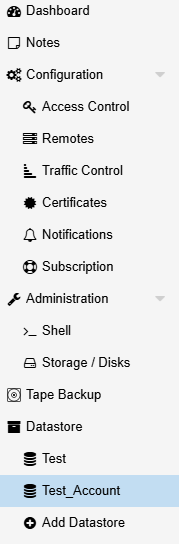
Once logged in you should see on the left sidebar an option named Datastore. This is where your backups will live. Your datastore should be available under the name FirstName_LastName.
Organizing Your Storage
Namespaces
You can create namespaces under your storage location to help keep your backups well organized. To make a namespace, go to your datastore location (FirstName_LastName) and select Content towards the top.
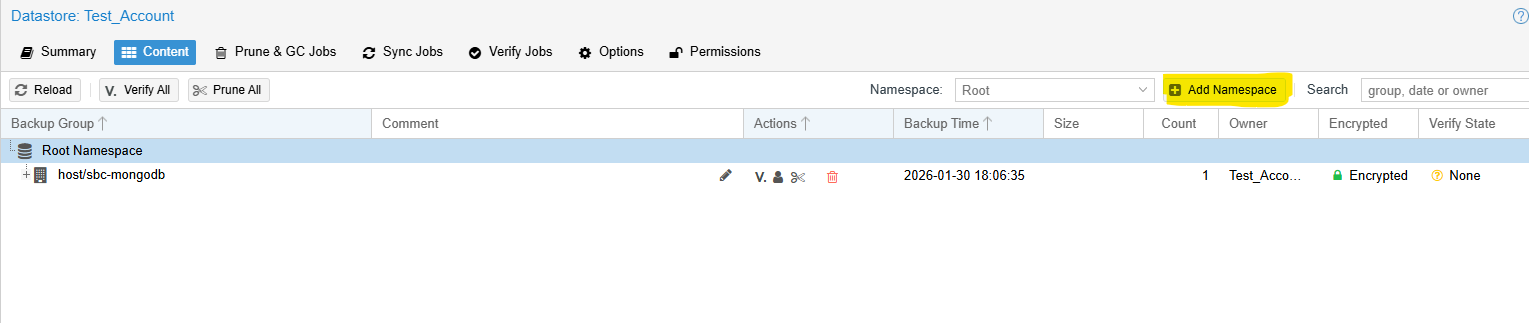
Once you are in the Content page, select Add Namespace. Type whatever name you would like to use and click Create.
For more information on Namespaces, please refer to Proxmox's Official Documentation or contact support@untangledtechnology.com.
Adding More Storage
If you need more storage space, go to https://www.tac.global/add_space
Select the additional amount of storage you would like to add.
Once payment is confirmed, you will receive an email confirming your storage limit has been adjusted.
Login to see the reflected changes.
If you need storage increases above 5 TB, please contact sales at https://www.tac.global/contact