Backing up from any Linux Server
Proxmox Backup Client Installation
Debian Based Installation
For Debian based systems, please add the following information to your system.
To configure the repository, you will need to setup the Proxmox release key first. On your server, get the key from the following site below:
https://enterprise.proxmox.com/debian/proxmox-release-[debian version].gpgOnce you have the key on your server, move it to /usr/share/keyrings/
To add the repository, in /etc/apt/sources.list.d, create a file named proxmox.sources and add the following below:
Types: deb
URIs: http://download.proxmox.com/debian/pbs
Suites: [debian version]
Components: pbs-no-subscription
Signed-By: /usr/share/keyrings/proxmox-release-[debian version].gpg
Once you have this saved go ahead and run the following commands:
apt update
apt-get install proxmox-backup-client
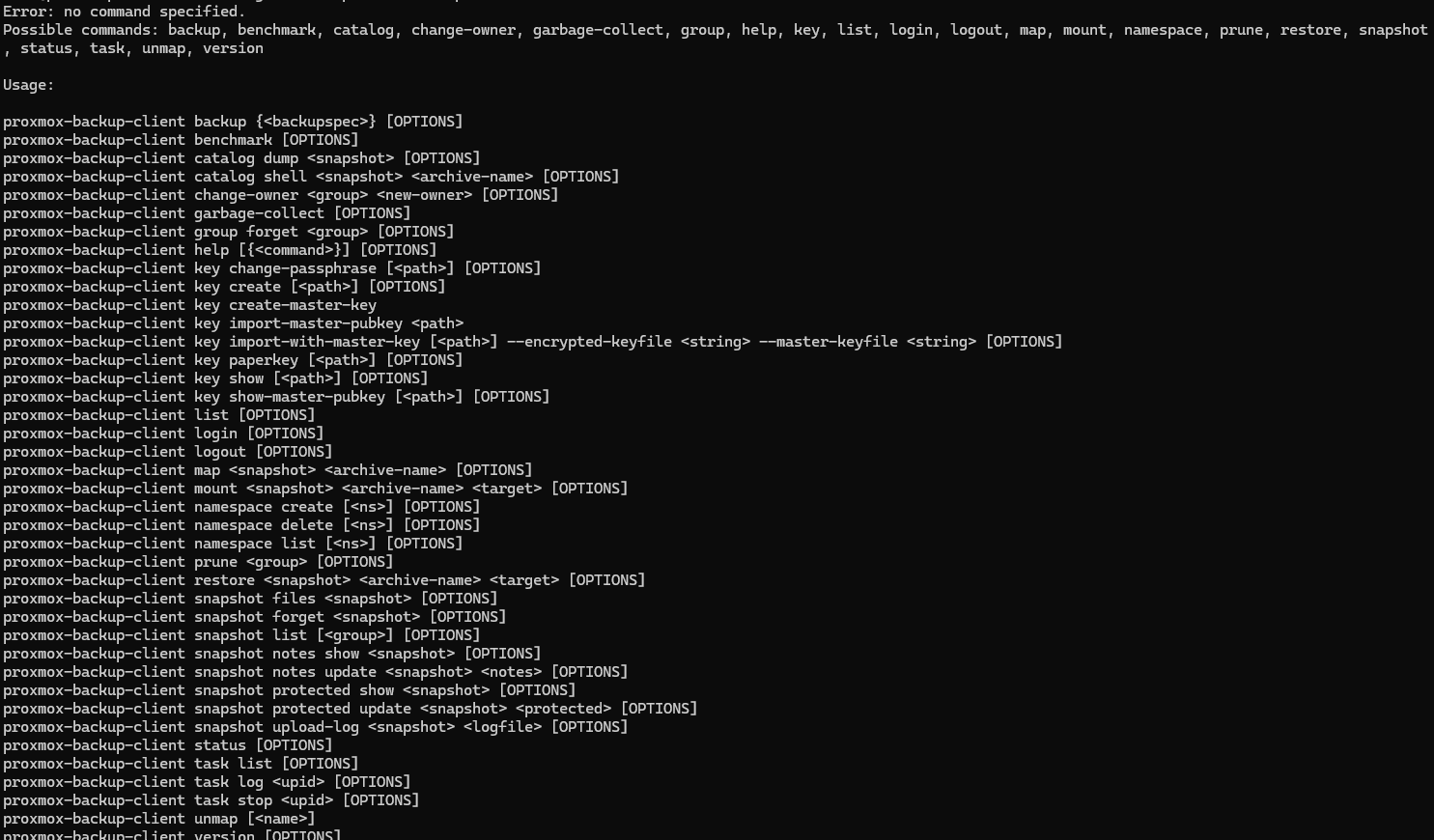
When the installation finished you should be able to run proxmox-backup-client and get the following manual:
If you have any issues installing the client, please refer to Proxmox's Official Documentation or reach out to support@untangledtechnology.com
Backing Up
How to Backup Your Data
To backup your data/files from your server, you will need your encryption key file and password.
Your repository will be:
Account_Name@pbs@hostname/IP:Account_NameExample command for backing up a folder or file
proxmox-backup-client backup [linux_user].pxar:[folder/file path] --repository [your repository link] --keyfile /path/to/encryption/file.keyFor more in depth or complex backup commands, please refer to Proxmox's Backup Usage Manual.
Restoring Backups
How to Restore Your Backups
Proxmox's Official Documentation
First, ensure that you have the encryption key file and the encryption file password ready to go. If you have forgotten either, please check your onboarding email for the details.
To connect to the backup server repository, login with the following command. You will be prompted to enter your password.
proxmox-backup-client login --repository "FirstName_LastName@pbs@[Hostname or IP]:[Datatore Name]Once you have successfully logged in, run the following command to see your backup snapshots.
proxmox-backup-client snapshot listTo restore your selected files you can use the following command
proxmox-backup-client restore [host/example/2026-01-30T23:06:35Z] index.json --repository "" --keyfile /path/to/keyfileRemoving/Pruning Backups
How to Remove Backups
To remove backups, please refer to the following documentation
For additional information on how to use the proxmox-backup-client to prune your backups, please refer to Proxmox's Official Documentation